User Impersonation
User impersonation allows administrators to temporarily authenticate as another user without knowing their password. This is useful for customer support, debugging user-specific issues, and testing permissions.
How It Works
Impersonation is a session-based feature that stores your admin credentials while you're viewing the application as another user. You can exit impersonation at any time to return to your admin account.
The process:
- Admin clicks "Impersonate" on a user in Filament
- Session stores original admin credentials
- Admin is authenticated as the target user
- Visual indicator appears showing who you're impersonating
- Click "Stop Impersonation" to return to your admin account
This feature is included in the Auth module. Make sure you have it installed and enabled.
Starting Impersonation
Navigate to the Filament admin panel at /admin and access the Users section.
Impersonation is available from three locations:
- Users Table - Action button in the row actions menu
- Edit User Page - Header action button
- View User Page - Header action button
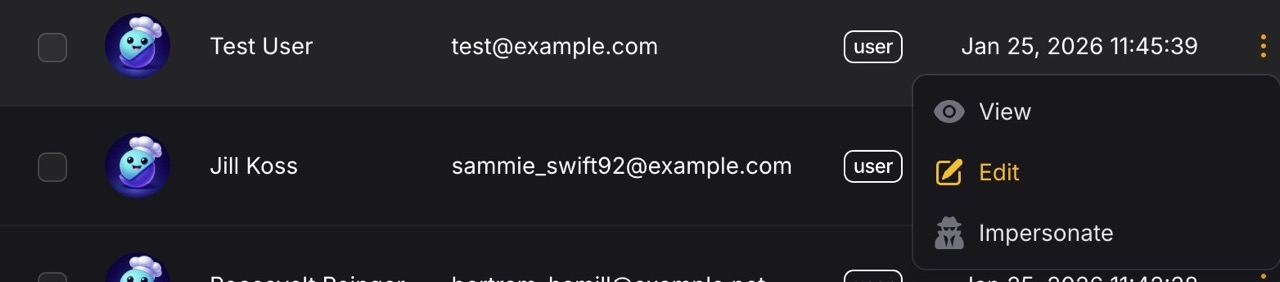
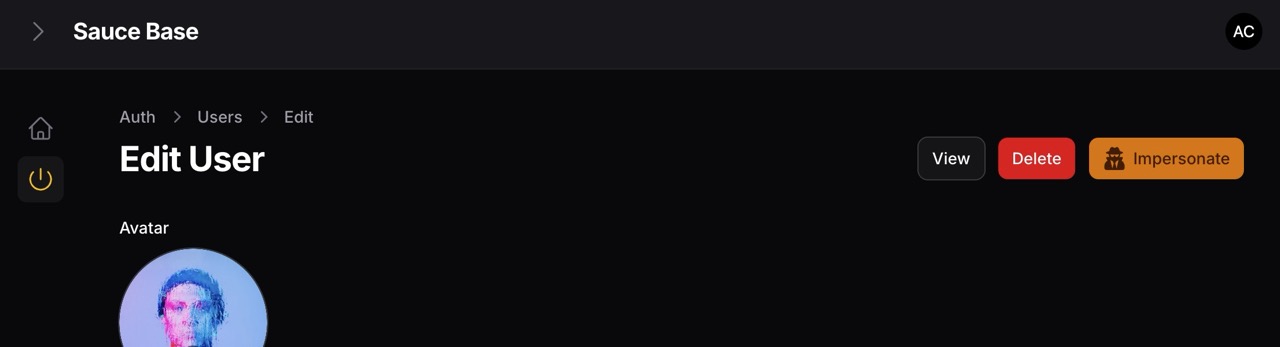
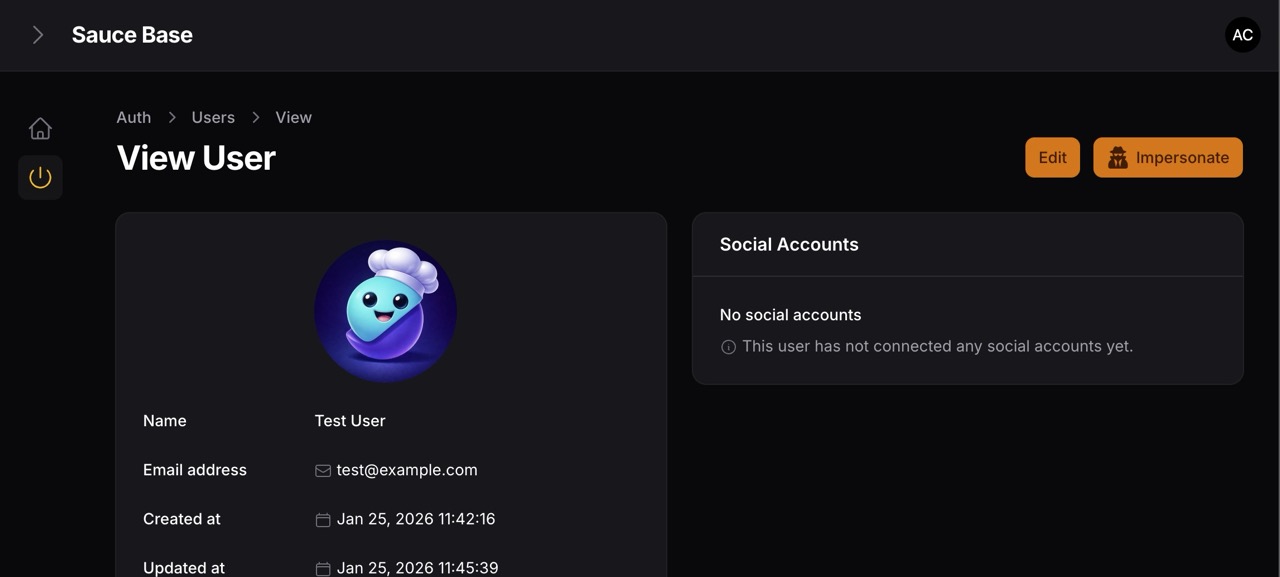
Click the "Impersonate" button to start viewing the application as that user. You'll be redirected to the dashboard and see an impersonation alert.
Impersonation Alert
When actively impersonating a user, a visual indicator appears in the bottom-right corner of every page.
Collapsed State
A small avatar badge with an orange ring and drama icon overlay.
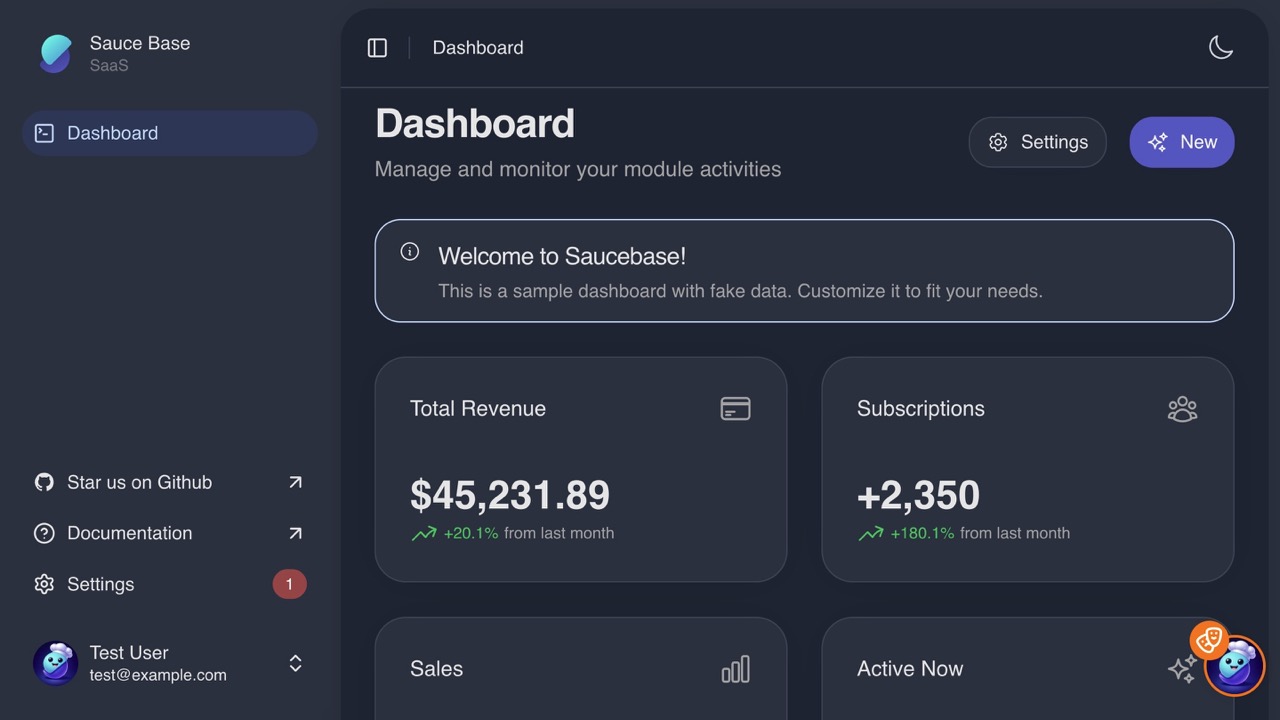
Features:
- Shows the impersonated user's avatar (or initials if no avatar)
- Orange ring indicates active impersonation
- Drama icon badge for visual distinction
- Hover tooltip displays user's name
- Click to expand and see full details
Expanded State
Click the badge to expand into a full card showing user information and controls.
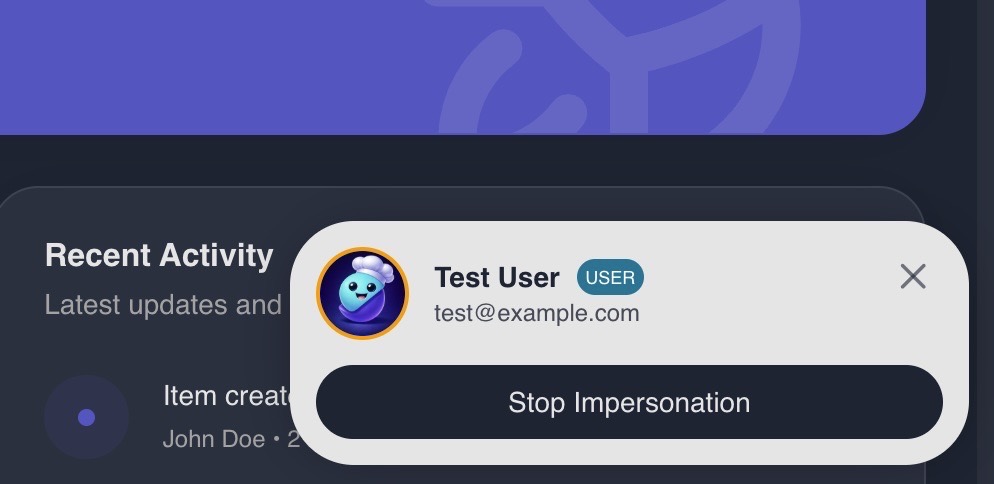
Features:
- User's avatar/initials
- Full name and email address
- Role badge (admin/user)
- "Stop Impersonation" button
- Click outside or press Escape to collapse
- Close button (X) to collapse
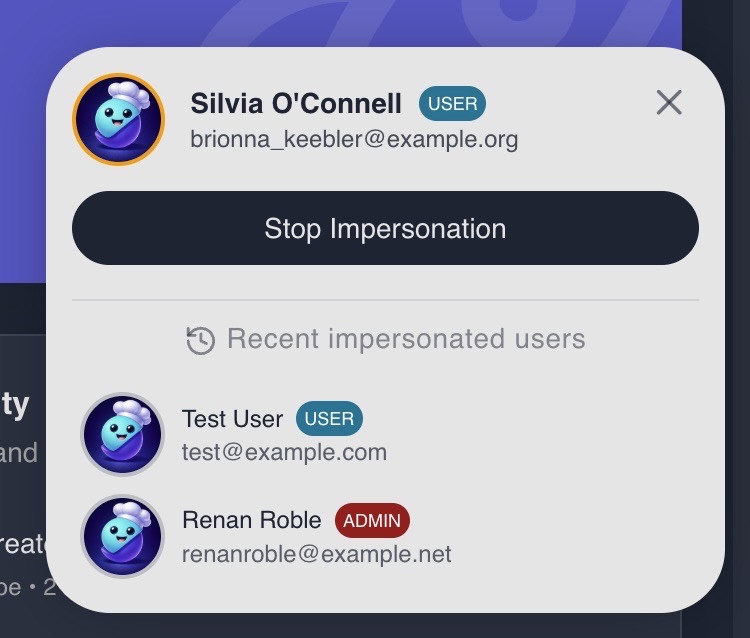
Recent History:
- Shows last 3 impersonated users below the Stop button
- Click any user to instantly switch to impersonating them
- Displays avatar, name, email, and role badge
- Automatically filters deleted users and current user
- History clears on logout
Stopping Impersonation
To exit impersonation and return to your admin account:
- Click the impersonation badge to expand it
- Click the "Stop Impersonation" button
- You'll be returned to the dashboard as your admin user
Alternatively, navigate directly to the leave impersonation route from any page.
When you start impersonating a user, a toast notification confirms: "You are now impersonating another user"
Recent History
The impersonation alert keeps track of your last 3 impersonated users, making it easy to switch between users during support or testing sessions.
How It Works
- Session-based storage - History persists only for your current session
- Automatic filtering - Deleted users are removed automatically
- Chronological order - Most recently impersonated users appear first
- Role visibility - See user roles at a glance with colored badges
Switching Between Users
- Expand the impersonation alert by clicking the avatar badge
- Scroll to the "Recent impersonated users" section
- Click any user in the list to instantly switch to impersonating them
- No need to stop impersonation first - switching is seamless
The alert will collapse automatically after switching.
Role Badges
Users in the recent history display role badges for quick identification:
- Red badge - Admin users
- Blue badge - Regular users
This helps you quickly identify user types when switching between test accounts or debugging permission issues.
Use Cases
Rapid Testing: Quickly switch between admin and user accounts to test permission-based features without repeatedly navigating back to the admin panel.
Support Workflows: Cycle through multiple customer accounts efficiently when investigating related support tickets.
Quality Assurance: Test user journeys across different account types by maintaining quick access to test users.
Technical Details
- Storage: Session key
impersonation.recent_history - Limit: 4 user IDs stored, 3 displayed (excluding current)
- Route:
POST /auth/impersonate/{userId} - Permissions: Requires access to Filament admin panel
Use Cases
Customer Support
Reproduce issues users are experiencing by viewing the application exactly as they see it.
Permission Testing
Verify that role-based permissions are working correctly by impersonating users with different roles.
Bug Debugging
Investigate user-specific bugs without requiring password sharing or manual authentication.
Feature Testing
Test new features from the perspective of different user types before rolling out to production.
Security & Best Practices
- Admin-only feature - Only accessible from Filament admin panel
- Session-based - Impersonation ends when the browser session closes
- Guard protection - Prevents cross-panel impersonation issues
- No password exposure - Users' passwords are never revealed or compromised
Best Practices
Transparency
- Inform users in your privacy policy that admin impersonation is possible
- Consider logging impersonation events for audit trails
Appropriate Use
- Only impersonate users for legitimate support or debugging purposes
- Exit impersonation immediately after resolving the issue
- Don't modify user data while impersonating unless absolutely necessary
Security Measures
- Limit admin access to trusted team members
- Monitor impersonation usage in production environments
- Consider implementing time limits for impersonation sessions
Technical Details
Packages Used
The impersonation feature is powered by two Laravel packages:
- lab404/laravel-impersonate - Core session-based impersonation logic
- stechstudio/filament-impersonate - Filament admin panel integration
How Data is Shared
Impersonation data is shared globally via Inertia.js, making it available to all frontend pages. The ImpersonationAlert component automatically appears when impersonation is active.
Event System
When impersonation starts, a TakeImpersonation event is dispatched. The Auth module listens to this event to:
- Display a toast notification confirming impersonation
- Track the user ID in session history for recent history feature
When impersonation ends, a LeaveImpersonation event is dispatched, clearing authentication hashes from the session.
Troubleshooting
Impersonation Button Not Visible
Make sure the Auth module is installed and enabled:
php artisan module:list
Check that your admin user has the necessary permissions in Filament.
Alert Not Appearing
The impersonation alert requires the ImpersonationAlert component to be rendered in your layout. This component is included in the base App.vue layout.
Clear the cache and rebuild assets if you recently installed the Auth module:
php artisan optimize:clear
npm run build
Session Issues
Impersonation stores data in the session. If you're experiencing issues:
- Verify your session driver is working correctly
- Check session configuration in
config/session.php - Ensure cookies are enabled in your browser
Recent History Not Showing
The recent history section appears only after you've impersonated at least one user. If you've impersonated users but the section is missing:
- Verify you're viewing the expanded alert state (click the avatar badge)
- Check that you've impersonated multiple users (needs 1+ previous users)
- Clear browser cache and refresh if you recently updated the Auth module
- Ensure your session is active and not expired
Next Steps
- Modules - Learn about installing and managing modules
- Routing - Understand routing in Saucebase
- Testing Guide - Test impersonation functionality
Impersonation is a powerful tool for support and debugging. Use it responsibly to provide better service to your users.